# Creating Stunning Loading Screens in React: A Guide to Building 3 Types of Loading Screens
> Learn how to create stunning loading screens in React with 3 different methods. Discover how to use React-Loading, React-Lottie & build a custom loading screen. Improve the user experience.
- **Source:** DevDreaming (https://devdreaming.com)
- **Canonical URL:** https://devdreaming.com/blogs/create-3-different-types-of-loading-screens-in-react
- **Author:** CodeBucks
- **Published:** 2021-01-08
- **Last updated:** 2023-01-29
- **Topics:** React js, UI Design
---
Hey Devs👋,
I was finding a good way to make Loading screen/animation for my small [React application](/blogs/category/react-js), and I found 3 different ways to make good loading screens,
- **Type-1** : Using [react-loading](https://www.npmjs.com/package/react-loading) library.
- **Type-2** : Using [react-lottie](https://www.npmjs.com/package/react-lottie) library.
- **Type-3** : Using simple `CSS`.
This post will be the 3-part. If you prefer to watch video tutorial then you can watch it here else just watch first 2 minutes to get an idea of what we're going to build here..and keep reading!😄
[▶ Watch the video on YouTube](https://www.youtube.com/watch?v=Y7pL5wG5QOg)
Before we start let's create the React app by using following commands,
```shell
npx create-react-app react-loading-screen
```
Next, let's install two libraries that we're going to use.
```shell
npm install react-loading react-lottie
```
> **NOTE**
>
> Here, I'm using [jsonplaceholder
> API](https://jsonplaceholder.typicode.com/guide/) to get data, to show how we
> can use pre-loader when using API.
### Type 1: Loading Screen with `react-loading`
Create separate file called `PreLoader1.js`. Let's create functional Component and here, we're going to use two states,
```javascript
const [data, setData] = useState([]);
const [done, setDone] = useState(undefined);
```
- `data state`: To store data which comes from API call.
- `done state`: It is boolean to decide weather to show pre-loader or not.
Now in the `useEffect`,
```javascript
useEffect(() => {
setTimeout(() => {
fetch("https://jsonplaceholder.typicode.com/posts")
.then((response) => response.json())
.then((json) => {
console.log(json);
setData(json);
setDone(true);
});
}, 2000);
}, []);
```
Now in the above `useEffect` method, first we use fetch method to get data from api then we convert that data into `json`,
then we will set `data` state with `json` data, and after that set `done` state to `true`.
> **NOTE:**
>
> Here, I have used time out function for 2 seconds so that we can see loading screen for more time. Now, remember if you don't need controlled loading screen then you can alsways put the simple loading screen with some css on the index.html. So it will run until the
>
> `react-dom`
>
> takes control.
Now let's render our component.
```javascript
import React, { useEffect, useState } from "react";
import ReactLoading from "react-loading";
function PreLoader1() {
const [data, setData] = useState([]);
const [done, setDone] = useState(undefined);
useEffect(() => {
setTimeout(() => {
fetch("https://jsonplaceholder.typicode.com/posts")
.then((response) => response.json())
.then((json) => {
console.log(json);
setData(json);
setDone(true);
});
}, 2000);
}, []);
return (
<>
{!done ? (
) : (
{data.map((post) => (
- {post.title}
))}
)}
);
}
export default PreLoader1;
```
**Line 22:** We will check if `done` state is false then we will render pre-loading component else we will render data we want to show.
**Line 23:** Here, I have used react-loading library, where we only have to set type, color, height and width. you can find more functionalities on [this](https://www.npmjs.com/package/react-loading) url.
**Line 30:** From here I have mapped data state inside the ul tag which returns title of each post in li tag. _(use _`console.log()`_ inside _`useEffect`_ to see what kind of data we are getting)_
Let's import this inside the `App.js` file. Clean up everything from the `App.js` file and import the `PreLoader1` component as the following code block,
```javascript
import React from "react";
import "./App.css"
import PreLoader1 from "PreLoader1.js";
function App() {
return (
);
}
export default App;
```
In the `App.css` file add the following styles,
```css
*,*::before,*::after{
margin:0;
padding:0;
box-sizing: border-box;
}
body{
background-color:#1b1b1b;
}
.App{
width:100vw;
height:100vh;
display:flex;
justify-content:center;
align-items:center;
}
```
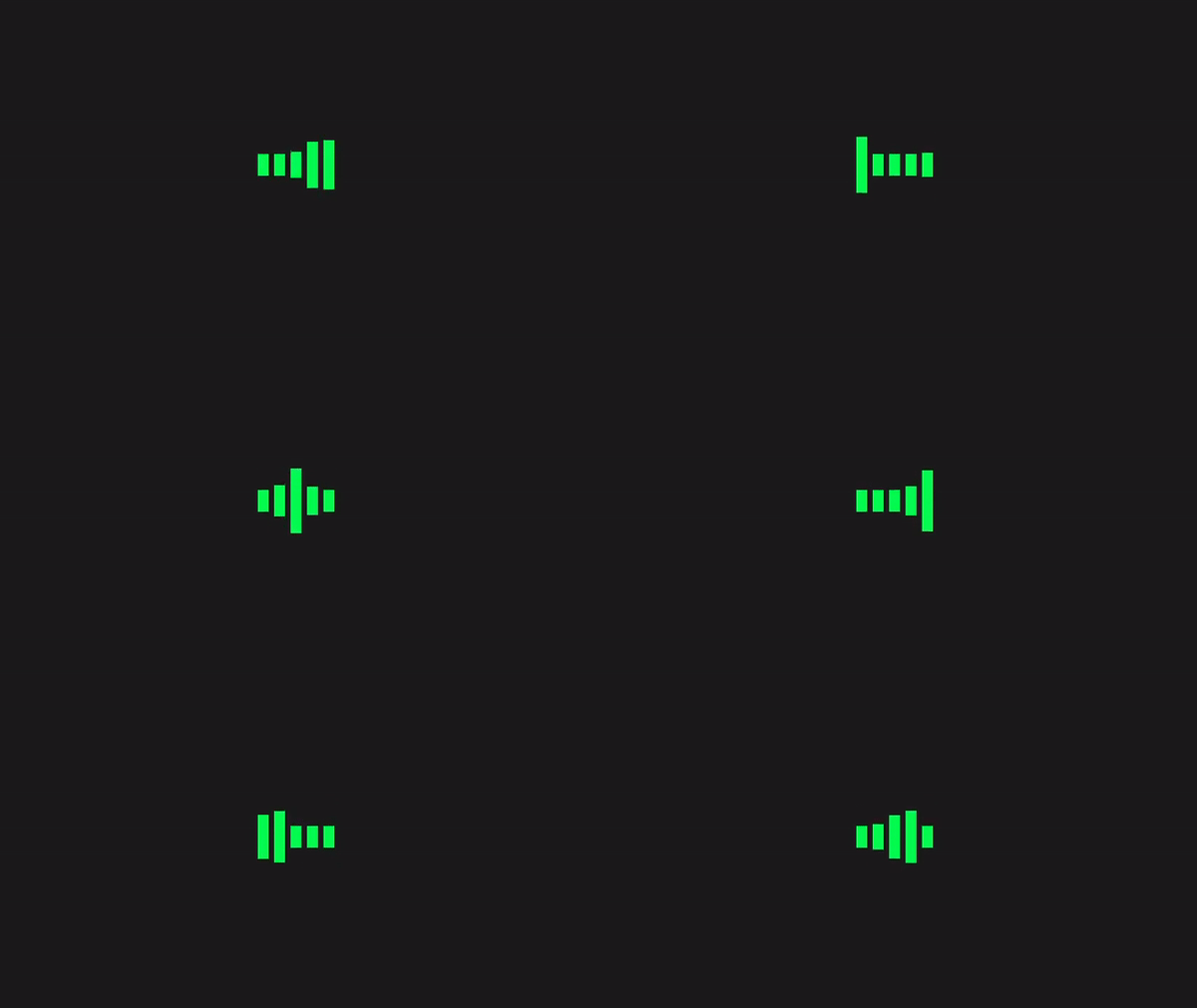
Final output of the loading screen👇
### Type-2: Loading Screen with `react-lottie`
Let's create new file and name it as `PreLoader2.js`. create functional component, and import the `react-Lottie` library.
```javascript
import Lottie from "react-lottie";
```
In this type of loading screen we have to download animation files from [lottie files.](https://lottiefiles.com/) For this tutorial we will use the following two lottie animation files,
- [Earth animation](https://lottiefiles.com/79794-world-locations)
- [Success animation](https://lottiefiles.com/1127-success)
Download these files(Lottie JSON) and keep them in your project directory. Let's import this json files like the following code block,
```javascript
import * as location from "../79794-world-locations.json";
import * as success from "../1127-success.json";
```
As mentioned in the `react-Lottie` library [documentation](https://www.npmjs.com/package/react-lottie), we need to set default options to use this animation files in our project so first declare this options as,
```javascript
const defaultOptions1 = {
loop: true,
autoplay: true,
animationData: location.default,
rendererSettings: {
preserveAspectRatio: "xMidYMid slice",
},
};
const defaultOptions2 = {
loop: true,
autoplay: true,
animationData: success.default,
rendererSettings: {
preserveAspectRatio: "xMidYMid slice",
},
};
```
`defaultOptions1` for first file while `defaultOptions2` for the second file. In this component we're going to use 3 state,
```javascript
const [data, setData] = useState([]);
const [loading, setloading] = useState(undefined);
const [completed, setcompleted] = useState(undefined);
```
- `data state`: To store data which comes from API call.
- `loading state`: Boolean state for first animation file.
- `completed state`: Boolean state for second animation file when API call is completed.
Now, let's use `useEffect` method to set theses states.
```javascript
useEffect(() => {
setTimeout(() => {
fetch("https://jsonplaceholder.typicode.com/posts")
.then((response) => response.json())
.then((json) => {
console.log(json);
setData(json);
setloading(true);
setTimeout(() => {
setcompleted(true);
}, 1000);
});
}, 2000);
}, []);
```
This `useEffect` method is almost same as in the `PreLoader1.js`,
only difference is that instead of `done` state we have to set `completed` and `loading` state to true. Also, I have used one more timeout function for 1 sec to see the 2nd animation.
```javascript
return (
<>
{!completed ? (
<>
{!loading ? (
) : (
)}
) : (
<>
Your Data
)}
);
}
```
As shown in the above code, in the return, if `completed` state is false then we will render loading screen else we will render our data. In the animation part we will do one more conditional rendering, when `loading` state is false then we will render the earth animation else we will render the success animation. Dont't forget to set `options={defaultOptions1}` for file 1 and `options={defaultOptions2}` for file 2.
Full Code:
```javascript
import React, { useEffect, useState } from "react";
import Lottie from "react-lottie";
import * as location from "../1055-world-locations.json";
import * as success from "../1127-success.json";
const defaultOptions1 = {
loop: true,
autoplay: true,
animationData: location.default,
rendererSettings: {
preserveAspectRatio: "xMidYMid slice",
},
};
const defaultOptions2 = {
loop: true,
autoplay: true,
animationData: success.default,
rendererSettings: {
preserveAspectRatio: "xMidYMid slice",
},
};
function PreLoader2() {
const [data, setData] = useState([]);
const [loading, setloading] = useState(undefined);
const [completed, setcompleted] = useState(undefined);
useEffect(() => {
setTimeout(() => {
fetch("https://jsonplaceholder.typicode.com/posts")
.then((response) => response.json())
.then((json) => {
console.log(json);
setData(json);
setloading(true);
setTimeout(() => {
setcompleted(true);
}, 1000);
});
}, 2000);
}, []);
return (
<>
{!completed ? (
<>
{!loading ? (
) : (
)}
) : (
<>
Your Data
)}
);
}
export default PreLoader2;
```
Now as per the [Creative Commons License](https://lottiefiles.com/page/license) of Lottie files, _The creator(s) must be attributed in your application._ You can attribute creator as shown in line no **60** to **71**.
Final output of this loading screen👇

### Type-3: Custom Built Loading Screen with `CSS`
In this type of loading screen we are not going to use any library instead we are only using simple css styling. Now the logic of displaying pre-loader is same as in the type-2 so here I'm not going to show you the whole process. Let's create new file `PreLoader3.js` and copy the whole code from `PreLoader2.js` file and remove all code related with `react-Lottie` library and keep everything as it is.
only change return statement as shown below,
```javascript
return (
<>
{!completed ? (
<>
{!loading ? (
) : (
✓
)}
) : (
<>
Your Data
)}
);
```
In the above code, `div` with the class `spinner` contains Loading text and spinner. while `div` with the `className` completed contains success symbol.(✓). Now let's do some css styling. Create separate file `preloader3.css` for styling and import it in the `Preloader3.js` file.
```css:App.css
.spinner {
width: 300px;
height: 300px;
display: flex;
justify-content: center;
align-items: center;
background-color: transparent;
}
.spinner span {
font-size: 2rem;
animation: fade 1s linear 0s infinite;
padding-right: 1rem;
}
.half-spinner {
width: 50px;
height: 50px;
border: 3px solid #03fc4e;
border-top: 3px solid transparent;
border-radius: 50%;
animation: spin 0.5s linear 0s infinite;
}
.completed {
font-size: 2rem;
color: #03fc4e;
animation: bigger 1s linear;
}
@keyframes bigger {
from {
transform: scale(0);
}
to {
transform: scale(2);
}
}
@keyframes spin {
from {
transform: rotate(0);
}
to {
transform: rotate(360deg);
}
}
@keyframes fade {
from {
opacity: 0;
}
to {
opacity: 1;
}
}
```
Here, `.spinner` class is simply box for spinner. `.spinner span` contains styling and animation for loading text. `.half-spinner` contains styling for spinner. Now to cut this whole spinner as in **line no 20** you just have to set border top to transparent. `.completed` contains styling and animation for success(✓) symbol.
Final output of the loading screen👇

This is the End of this article🏆, I hope you liked it.
---
## Related on DevDreaming
- [All Blog Posts](https://devdreaming.com/blogs)
- [Free Developer Tools](https://devdreaming.com/tools)
- [Video Tutorials](https://devdreaming.com/videos)
- [AI Tools for Developers](https://devdreaming.com/ai-tools)
---
_This is the Markdown twin of a page on **DevDreaming** -- free developer tutorials, tools, and AI resources. Source of truth: the canonical HTML URL above._